How to Make an Invoice
To make an invoice, put the word "Invoice" at the top, add your business details and your customer's, and give it a unique number, a date and a due date. List what you are charging for with quantities and prices, add any tax, then show the total and how to pay. Save it as a PDF, send it to your customer and keep a copy.
What you need before you start
Have these ready. Most of them stay the same from one invoice to the next.
- Your business name, your address and an email address or phone number
- Your customer's name and billing address
- What you delivered, and when
- Quantities and prices, or the hours you worked and your hourly rate
- Whether you charge sales tax or VAT, and at what rate
- How you want to be paid: bank transfer, PayPal, a card payment link or another way
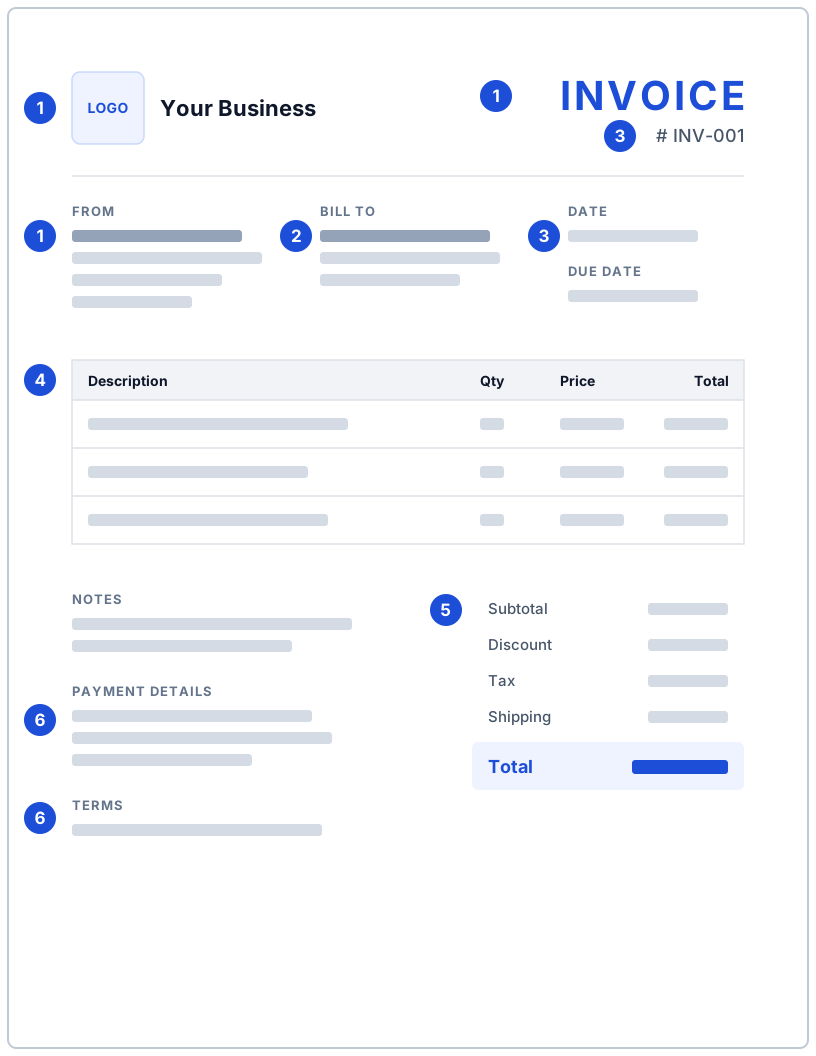
Step 1: Title it "Invoice" and add your business details
Start with the word Invoice at the top, large enough to see at a glance, so nobody takes the page for a quote or a receipt. Next to it or below it, put your business name, your address and a way to reach you, such as an email address or a phone number. Add your logo if you have one.
In the Free Invoice Generator, your details go on the From side of Parties, in Name and Address. The logo goes in Settings under Logo (optional), as a PNG, JPG or WEBP file.
In the UK, the government's list of what an invoice must include adds lines for sole traders: your name, any business name you use and, if you use one, an address where legal documents can be delivered to you. A limited company must show its full name as it appears on its certificate of incorporation.
Step 2: Add your customer's details
Next comes the customer: the business or person who pays. Use the name and billing address they gave you, spelled the way they spell it, so the invoice matches their records. For a business, add your contact or the accounts department if you know it.
In the generator, this is the To side of Parties. If the customer sent you a purchase order, put its number in Notes so they can match your invoice to their order.
Step 3: Give it a number, a date and a due date
Every invoice needs its own number. Pick a simple pattern and keep it, such as INV-001, INV-002 or 2026-001. You and your customer use the number to refer to the invoice, and "a unique identification number" is the first item on the UK government's list.
Then add two dates. The invoice date is the day you issue it. The due date is the last day to pay; if you agreed terms such as 30 days, write the actual date so nobody has to count. In the UK, when no payment date has been agreed, the customer has 30 days to pay you, counted from receiving your invoice or the goods or service.
The generator has Invoice number, Date and Due date under Document details. The sample starts at INV-001; change it to your next number. The UK list also asks for the supply date. If you delivered on another day, add it to the item description, for example "Bookkeeping, September 2026".
Step 4: List what you are charging for
Give each product or service its own line with a description, a quantity and a price. Write descriptions your customer will recognize: "Website maintenance, September 1–30" says more than "Services". For hourly work, put the hours in the quantity and your rate in the price. For a fixed fee, use a quantity of 1.
In the generator, each row of Line items has Description, Qty and Price, and the line total is worked out for you. Press + Add line for more rows, up to 30. On the home page, the Industry menu fills in typical line items for your trade, with prices at zero for you to replace.
Step 5: Add discount, tax and shipping, then check the total
Below the items, show how you get from the subtotal to the amount due: the subtotal, then any discount, tax and shipping, then the total. Your customer should be able to check every figure with a calculator.
In the Totals section, Discount and Tax each have a label, an amount and a Type: % or Fixed. Name the tax the way your customer knows it, such as Sales Tax, VAT or GST, and type the rate you charge; the generator does not look up rates. Shipping has a Taxable box.
If you are registered for VAT in the UK, HMRC's guidance says invoices must include your VAT number and display the VAT separately, and you must use VAT invoices when both you and your customer are VAT registered.
Step 6: Say how and when you want to be paid
Tell the customer exactly how to pay, so they do not have to write back and ask: the bank name, account name and number for a transfer, the email address for PayPal, or a payment link. Add your terms in one or two short sentences, such as "Payment is due within 30 days".
In the generator, Payment details has + Bank transfer, + PayPal, + Stripe link and + Add custom, for up to four methods. Terms and conditions and Notes are free text; Notes suits a thank-you line or a reference number.
If you charge a late fee or interest, say so in your terms before the due date. In the UK, GOV.UK confirms that you may charge interest on late payments, though you do not have to.
Step 7: Save it as a PDF, send it and keep a copy
Send invoices as PDF files. A PDF looks the same on your customer's screen and printer as on yours, and it is less likely to be edited by mistake than a Word or Excel file.
In the generator, choose the Paper size in Settings, such as Letter or A4. Press Download PDF: a preview of the pages opens, and after a short security check the file downloads with a name like invoice-INV-001.pdf. If the items run onto a second page, tick Fit everything on one page. Your invoice is rendered as a PDF on our server over an encrypted HTTPS connection. Your draft is saved in this browser until you reset it. A one-line "Created free with makeinvoicepdf.com" credit is on by default; one checkbox in the settings turns it off.
Send the PDF by email to whoever handles payment, put the invoice number in the subject line, and save a copy. In the US, the IRS names invoices among the supporting documents for your gross receipts. In the UK, sole traders and partners keep records for at least five years after the 31 January Self Assessment deadline for that tax year.
How to make an invoice look professional
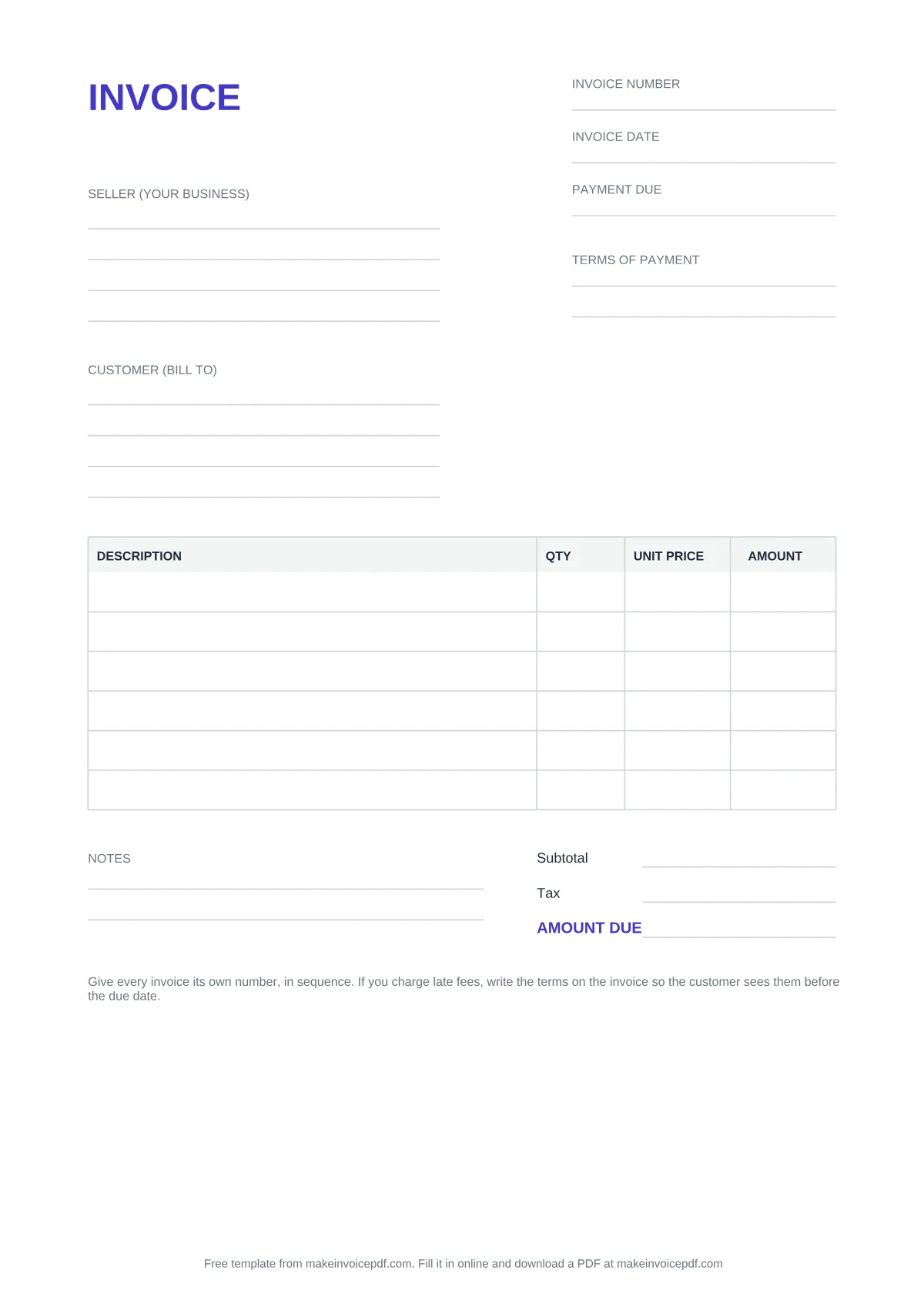
A professional invoice is one your customer can read in a few seconds and pay without asking anything.
- Use the same layout every time, so customers know where to look.
- Put the number and dates at the top and the total at the bottom right, in bold.
- Use your logo and one accent color; keep the rest black and gray.
- Keep the text short. Details go in the item descriptions; the terms fit in two lines.
- Show every amount with its currency, and make sure the lines add up to the subtotal.
- Check the customer's name, the number and the dates before you send.
- Send a PDF, not a file your customer can edit.
Invoice, quote, receipt or credit note?
An invoice asks for payment for something you delivered or agreed to deliver. Similar documents do other jobs:
- Quote: the prices you offer before the customer agrees. Make one with the Quotation Generator.
- Proforma invoice: set out like an invoice but sent before the sale, for example to ask for payment in advance. See the Proforma Invoice Generator.
- Receipt: confirms you have been paid. As the UK government notes, a receipt acknowledges a payment, which makes it a different document from an invoice.
- Credit note: lowers an invoice you already sent, after a return, an overcharge or a cancelled order. Use the Credit Note Generator or the Credit Note Template.
Questions
Can I make an invoice myself?
Yes. You do not need accounting software or an accountant. Fill in the Free Invoice Generator and download a PDF, or type into a Word or Excel template and export it to PDF. What matters is that the invoice carries the details from the steps above.
Do I need an LLC to make an invoice?
No. You can invoice under your own name. The IRS treats anyone who owns an unincorporated business alone as a sole proprietor, and the UK government's invoicing rules have a section for sole trader invoices. If you use a business name, put it on the invoice too.
What must an invoice include?
It depends on where you work and whether you charge tax. For UK businesses, the GOV.UK list covers a unique invoice number, your business name, address and contact details, your customer's business name and address, a clear description of the goods or services, the date of supply and the date of the invoice, the amounts charged, any VAT, and the total owed.